

We’ve moved many permit applications to a fully paperless process to make applying faster, easier, and more convenient. On this page, you’ll find guidance on how to use the portal, what you need to get started, and answers to common questions as you make the switch from paper to online applications.
The following permit types are now available online:
- New Home
- Home Improvement
- Tenant Improvement
- Demolition
- Engineering Servicing Review
- Pre-Application Review
- Highway Use
If you’re new to online permits, don’t worry, support and step-by-step information are available to help you through the process.
Follow this link: Citizen Portal
- Check your junk mail, it may be hiding in there
- Sometimes it takes a few minutes for the email to appear, if it's been more than 15 minutes reach out to DSO@MapleRidge.ca
Ensure you are on the "My Permits" tab
Image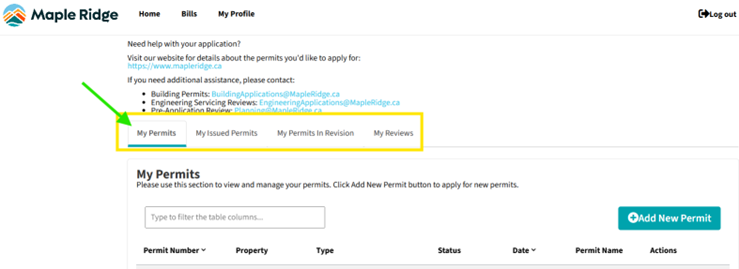
You can use the search bar to find the permit you're looking for; search by permit number, property address, type of permit, the status of the permit, or the permit name you entered when applying
Image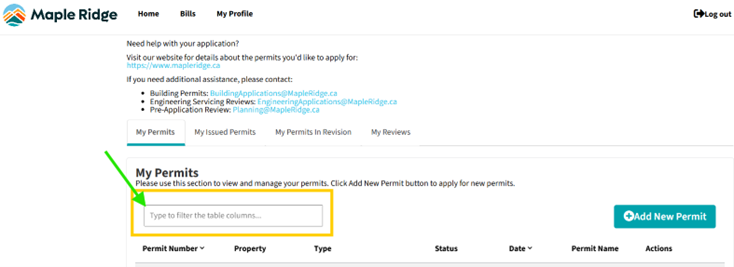
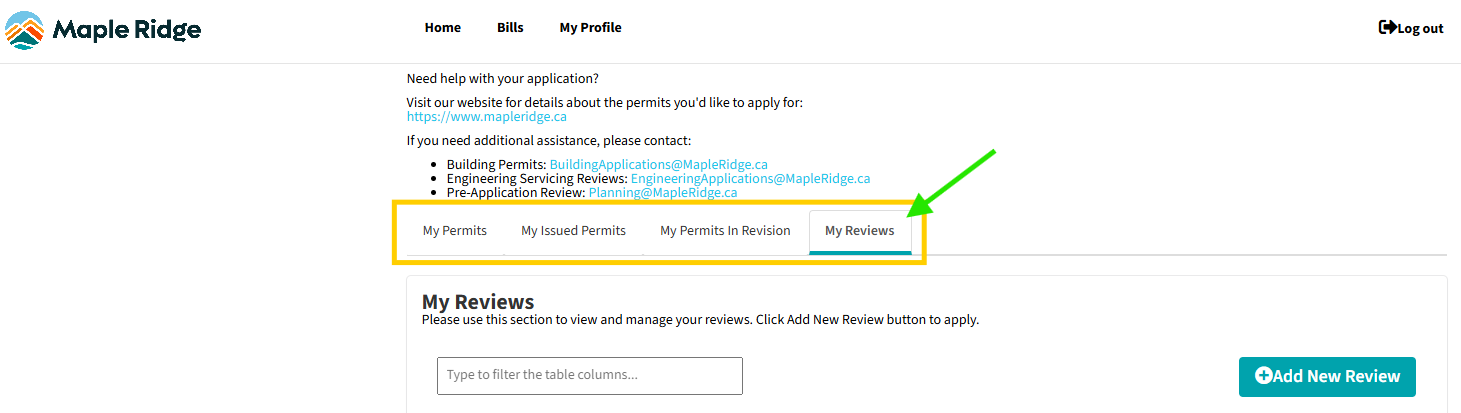
Ensure you're on the "My Reviews" tab, then select "+Add New Review"
- The short answer is no, however, if you are planning to renovate your house for example, all of the renovation work would be done under one permit.
- If you are planning to demolish your house and build a new house, you’ll need at least two permits, a New Home Permit and a Demolition Permit.
JPG, TIFF, PNG, GIF, DOC, PDF, TXT
No, all required documents listed within the application must be uploaded at the time of submission.
After you’ve submitted your application, you can upload additional documents in the Portal:
- Locate your permit in the Portal and click the orange “Details” button on the right.
- Select the “Supporting Documents” tab at the top of the page.
- Scroll down and there is an “Add” button.
- Select the document type “Additional Documents” and you can drag and drop or browse to select files.
- Note: you can select multiple files to upload at once, for your convenience.
- Locate your permit in the Portal, the Status is the column in the middle
- If you wish to see more details, the orange “Details” button on the right.
- Online Pending – The application has not been submitted yet
- Pending Review – The application has been submitted but review has not begun yet
- In Review – The application is under review with City staff
- Waiting for Client – Additional information is needed from you. You should receive an email from your City Contact, detailing what is needed.
- Ready to Issue – The application has been approved and requires payment before it can be issued.
- Issued – All payments have been received, and the application has been approved
- You will receive a confirmation email that the City has received your application
- As your application moves through the process you will receive updates
- If there are any issues or questions City staff will reach out
- You can track the status of your application in the Portal by locating your permit and clicking on the orange “Details” button
Either additional information or documents are required to continue processing your application. There should be an email outlining exactly what is required from you from the City Contact working on your application.
- Locate your permit in the Portal and click on the orange “Details” button
- Go to the “Fees & Payment” tab
- Your Bill(s) is located here
- Select the bill you wish to pay, you can only select ONE bill at a time, and click the “Pay Selected Fees” tab
- If you select multiple bills to pay at once you will receive an error message
- Follow the prompts to complete your payment
- Note: Any security or deposit-related fees must be paid in person. Online payment through the Portal is not supported.
You have 60 days to pay your permit fees after the permit is approved
- Visa and Mastercard for online payments
- Any other payment types must be made in person at City Hall
- Check your internet connection
- Check the scheduled maintenance times listed below the Login/Search here.
The Portal works with all browsers
You can use your phone or tablet; however, you will need to turn your phone to landscape to see all available options.
For safety reasons there is a timer set that will force you to re-login after an inactive period.
Yes, there are different roles available to designate within the application form.
The application form that is required for each permit includes space for this information.
The applicant, and anyone you designate that should receive updates in the application form.
The address of the property of your project.
If your property is not appearing in the system when searched please reach out to Planning@MapleRidge.ca or visit the Planning counter at City Hall.
- Currently the Portal supports one address per permit, unless you are submitting a request for a Pre-Application Review
- If your project includes multiple units, please make note of this in the “Description” section of your application
- Naming of documents, please remember, many people will be reviewing your documents and will have to discern what it is based on the name of the document
- Please use the document names provided on the associated checklist for your application
- Ensure you are uploading the correct document
- Check the checklist for your permit type to ensure you have everything
- Respond promptly when your application is in “Waiting for Client” status
- Review the associated checklist for your permit type and ensure you have all documentation and associated permits, if applicable